Recording Business Expenses
This is one of the most important processes any Small Business can do. Misplacing receipts or failing to record the information can lead to increased taxes causing potential business losses
Good financial accounting software is only part of the equation. Being strict with your approach to collection and storing of receipts and other such business documents can almost be as important as making profit and recording of income.
With our Bookkeeping and Accounting Software we offer you a simple consistent method for recording of your business expenses.
Our simple approach will help you stay on top of your expenditure, whether it be a home business, internet ebay business, sales rep, trades person or eft practitioner.
.
Date Order not Necessary
With our software you DO NOT have to enter your receipts in date order.. This is fantastic for the Home Business or Small Business owner who chooses to set aside one day a week or month to record transactions.
There is no need to line everything up in date order, you can simply pick up the first receipt you come to and enter it in. When finished you can sort the transactions in date order or simply exit, and the next time you enter the expenses screen EasyAs will automatically list the transactions in date order for you.
We have done away with the outdated 18th century style of double entry accounting. Why in the world would any small business want to spend hours attempting to understand this method of accounting when only 1% of the population understands it anyway,, and they are usually the accountants.
.
Partial View of expense screen

.
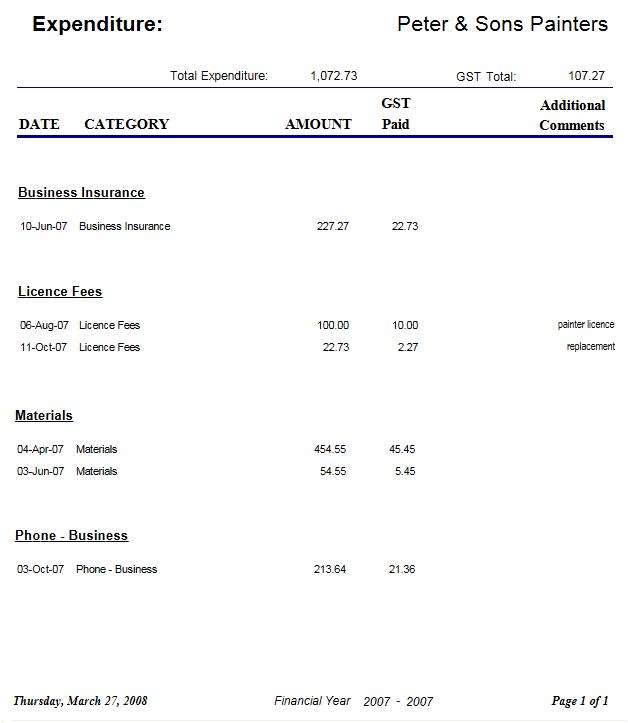
Below is a sample view of the above entries printed